


Query AWS Resources with a Custom Search Command in Splunk
By: Bruce Johnson | Director, Enterprise Security
Ever wondered what to make of all those resources living in your Cloud environment? Perhaps you’ve asked yourself, “What if I could leverage data from my cloud environment to enhance day-to-day Splunk operations?” The purpose of this blog is to show you how to quickly create a Splunk custom search command that will allow you to query AWS resources on the fly. New capabilities, eh? Well, maybe not so new. Custom search commands have been supported by Splunk for many years now; we’ll simply be shedding some light on how you can easily enhance the functionality of your Splunk environment to meet your business needs.
Splunk custom search commands are “commands that extend SPL to serve your specific needs.” Custom search commands can be Generating, Streaming, Transforming, and Dataset processing, each type serving a different purpose and functionality. For example, Generating search commands fetch data from a given location without performing any additional data processing or transformation. With a Splunk Generating search command, data can be natively fetched from a Splunk index or imported from any external source such as an API. In this blog, we’ll install a custom Splunk Generating Command that interacts with the AWS API to retrieve information about real-time compute and network resources deployed in a cloud environment.
Other types of Splunk search commands:
- – Streaming: process search results one-by-one, applying one transformation to each event that a search returns. A commonly used Splunk streaming command is the eval command.
- – Dataset processing: require the entire dataset in place before the command can run. For example, the sort command is a Dataset processing command that sorts the returned results based on the defined search fields.
- – Transforming: order search results into a data table. For example, chart, top, stats, time chart.
This blog walks you through the steps of installing a custom Splunk Generating command that allow you to query real-time resource information from your AWS cloud environments such as EC2 Instances, EBS Volumes, Security Groups, Network Interfaces, Subnets, and VPCs. This custom Splunk Generating command uses the Splunk SDK to interact with the AWS API and imports data into Splunk for further event processing and correlation. This custom Splunk Generating command can be used to:
- – Fetch information about existing AWS resources
- – Create inventory lookups for AWS resources
- – Correlate external data with Splunk indexed data
Requirements:
- – AWS account
- – Splunk Search Head hosted on an EC2 Instance
- – AWS IAM Role
- – AWS IAM Policy
- – Custom Search Command TA
To keep the blog simple, we’ll assume that our readers have a Splunk installation already launched in AWS. This blog will walk through the process of creating the necessary AWS role and policy to ensure the EC2 instance has the required permissions to query AWS resources. Once that’s taken care of, we’ll install the custom search command TA onto the Splunk Search Head.
Create AWS IAM Policy and Role:
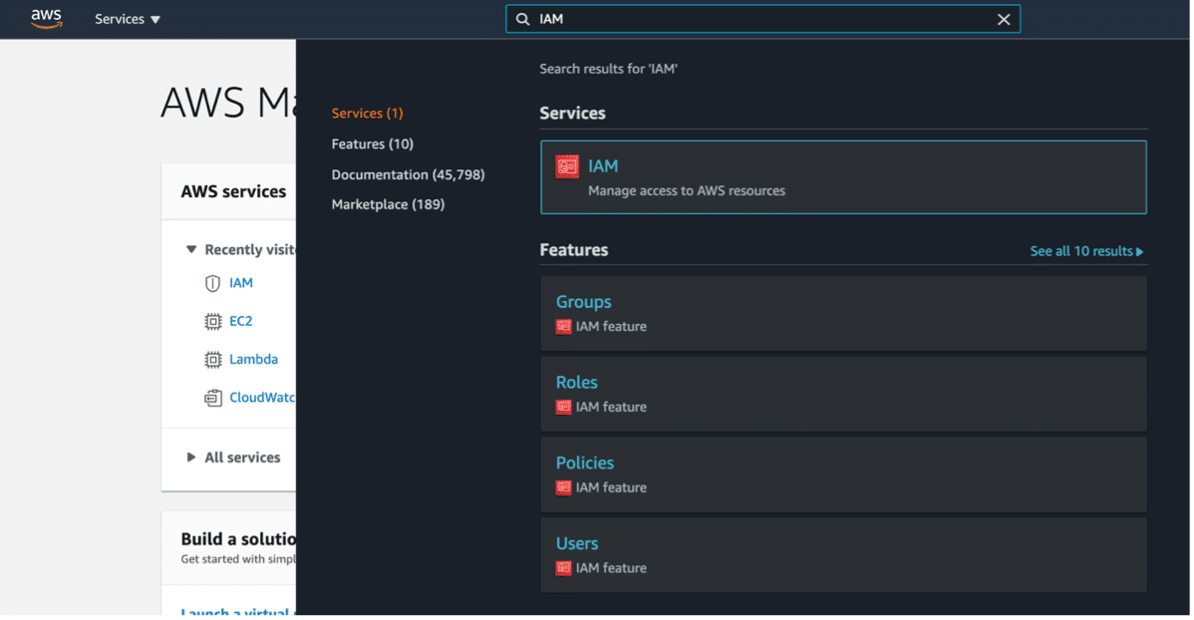
- Log in to your AWS account via the AWS Management Console.
- Go to the IAM service.

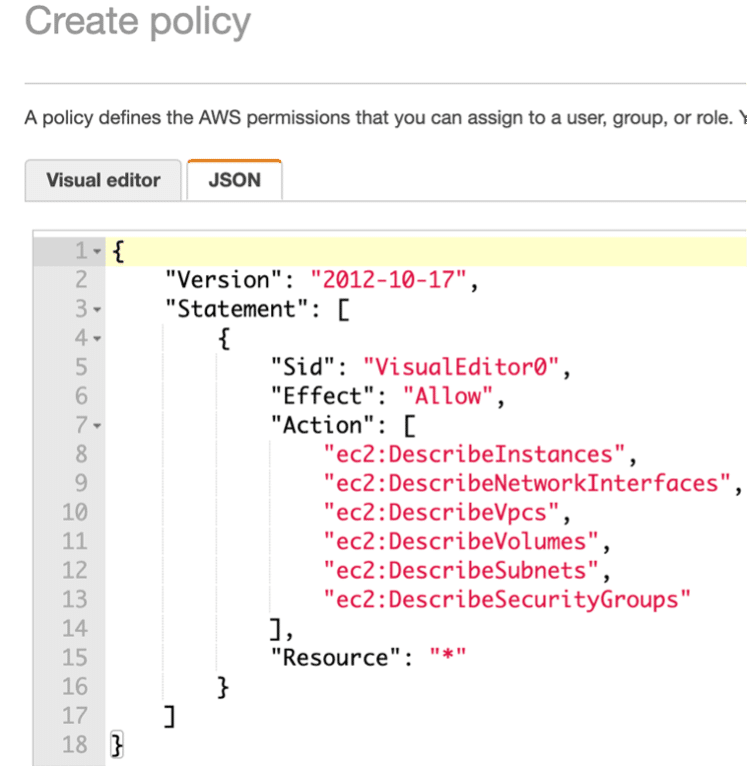
- Create an IAM Policy with the following AWS permissions.

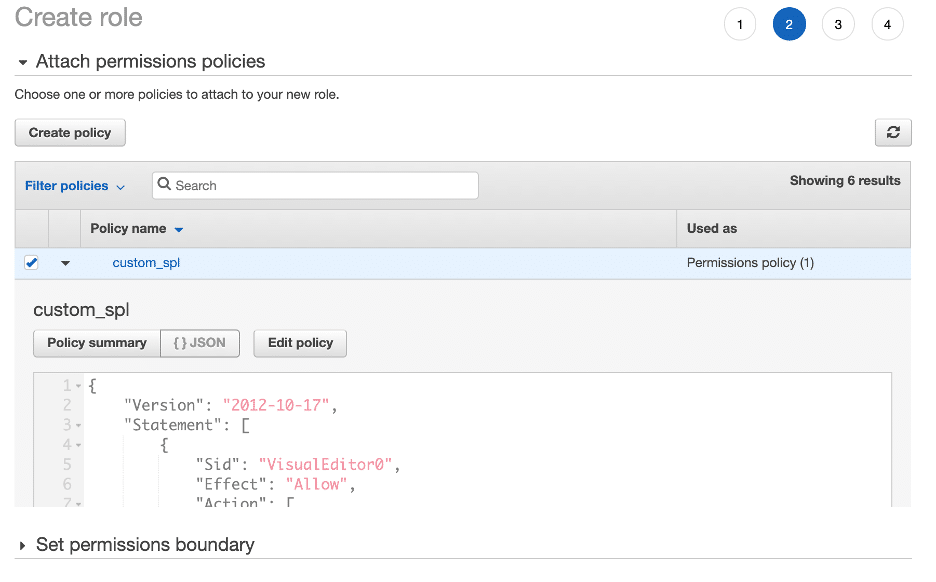
- Create an IAM Role that inherits the IAM policy you created in step three.

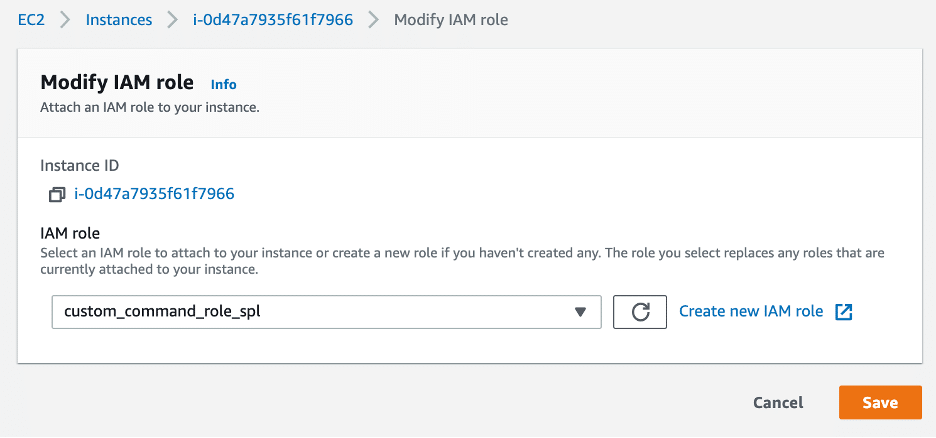
- Attach the IAM role created to your Splunk Search Head.

Install Custom Search Command on Splunk Search Head
- Initialize an SSH session to the Splunk Search Head.
- Clone the Custom Search Command repository from GitHub to $SPLUNK_HOME/etc/apps: git clone
- Restart Splunk:
$SPLUNK_HOME/bin/splunk restart - Search away!

EC2 Instances:

Subnets:

VPCs:

Security Groups:

EBS Volumes:

Network Interfaces:

TA Components:
- – aws_resources.py: Defines the AWS Client and required functions to pull AWS resources
- – awssearch.py: Defines the Splunk Generating Command used to pull AWS Resources
- – splunklib: Splunk SDK Python modules
- – commands.conf: Defines the “awssearch” SPL command to be used
- – searchbng.conf: Defines search-assistant configurations for the “awssearch” SPL command
Learn more about Splunk custom search commands.
Contact us for more help on using custom search commands in Splunk!