




















Splunk’s Hidden Customizable Feature: The Navigation Menu
By Eric Levy, Senior Splunk Consultant
Everyone familiar with Splunk’s user interface should be familiar with the classic navigation menu items at the top of most apps: “Search”, “Analytics”, “Datasets”, “Reports”, “Alerts”, and “Dashboards”.

What if you didn’t want to see these options within your custom app? Or, what if you wanted to link your own custom dashboards and views? In this post, we’re going to explore the “Navigation menus” settings within Splunk and how to leverage them.
For this example, I have created “My Test Dashboard” within a custom app. We’re going to add it to our navigation menu and make it the homepage of the app.
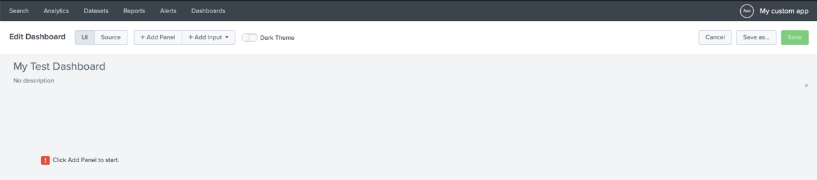
To access, within your desired app context, go to the “User interface” settings and select “Navigation menus”.
Adding a New View to the Navigation Menu (and make it the default view)
You’ll see a list with the “default” menu listed. This is what we’ll modify.

Upon clicking, you’ll see a block of XML configuration that dictates the layout of the menus. Each <view> node is placed within the larger <nav> node.
To add our dashboard, simply follow the <view> element format in the below screenshot. Order matters – top to bottom means left to right at the top of the page.
Attributes:
1) name = the ID of the view
2) default = set to true to make the view the first upon opening the app
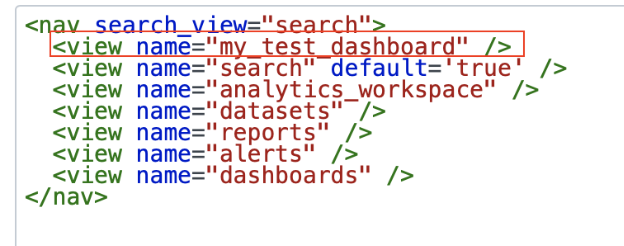
Now, when somebody opens “My custom app”, it will default to “My Test Dashboard”. The “My Test Dashboard” hyperlink is now present in navigation menu, in the same order as the XML nodes.

Creating a Collection (Dropdown Menu)
What if you wanted to condense down the default Splunk settings into a nice, tidy dropdown menu? Simply use the <collection> element to do this.
Attributes:
1) label = the name of the collection

And here is the result in Splunk. Once again, order matters:

Adding an External Link
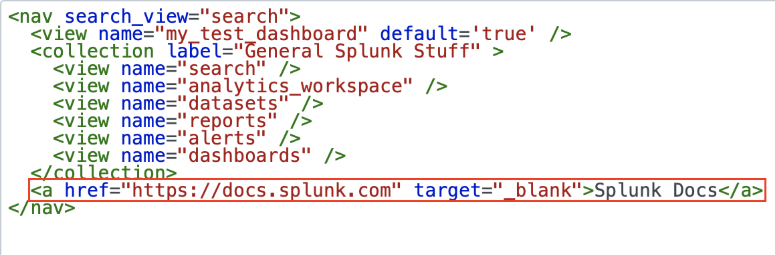
Splunk also gives you the option to add an external link as a navigation menu option. Let’s add the Splunk Docs as a useful resource to our users by adding an <a> element. Unlike the previous elements, the title is defined between nodes.
Attributes:
1) href = the target URL
2) target = set to “_self” to open the link in the same window; set to “_blank” to open it in a new tab or window.

For more settings and detailed documentation, check out the Splunk Dev article on Navigation XML Reference: https://dev.splunk.com/enterprise/reference/dashboardnav
Happy Splunking!
Curious how custom Splunk navigation or dashboards could work in your environment? Click here for more information!
About the Author
Eric Levy is a Splunk Core Certified Consultant who joined the TekStream team in July 2022. Eric’s background and eagerness to learn makes him excited to unlock the data possibilities Splunk has to offer its clients. Eric’s portfolio of projects makes him well adapted to time management and a diverse array of technical situations and has since expanded his horizons into Enterprise Security engagements as well as a full-time member of the IRS Splunk team. Eric resides in Arlington, Virginia and is a proud Virginia Tech graduate. In his free time, he continues to pursue his love of music.