



















Cleaning Up Git Commits When Working with Splunk SOAR
By Nathan Holloway, Automation Engineer
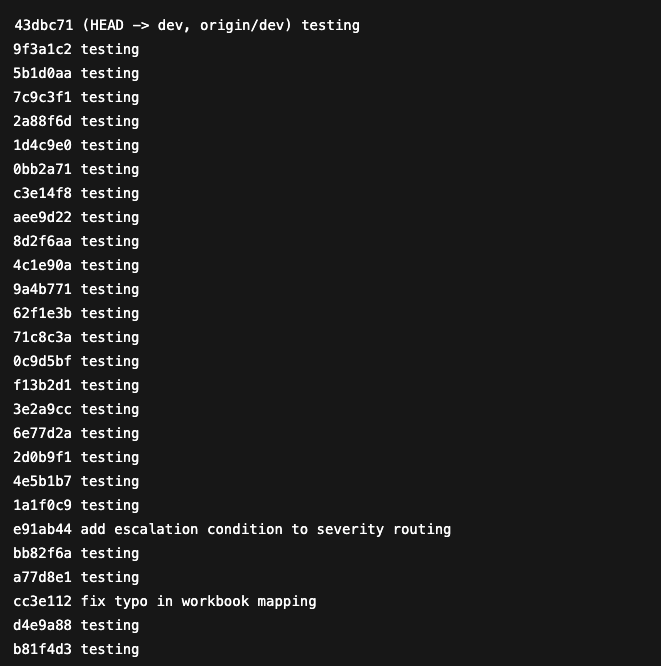
When developing in Splunk SOAR, testing often requires frequent saves. Each save results in a new git commit so changes can be validated, deployed, or rolled back if something breaks.
During active development, this adds up fast. A single ticket can generate dozens of commits even though all of them are part of one logical change. Most of those commits exist only because you needed to test, not because you reached a meaningful milestone.
By the time the work is finished, the branch history is cluttered with repetitive commit messages that provide little insight into what was actually changed. This makes reviews harder, increases the risk of pulling in partial work, and complicates cherry-picks or production fixes later.
The goal of this post is to show how to keep the fast test-and-iterate workflow that Splunk SOAR encourages, while still ending up with a clean, intentional commit history that reflects real units of work.
What this usually looks like in Git
From test commits to a shippable change
By the time a Splunk SOAR ticket is actually finished, the work is usually solid, tested, and ready to go. The only problem left is the commit history.
All of those test commits served a purpose while you were building and validating the change. They just are not useful anymore once the work is complete. Before anything gets merged or promoted, the history should reflect what was actually delivered, not every intermediate save along the way.
The goal of this section is to turn that noisy branch into something intentional and easy to reason about. This does not require changing how you develop day to day. It is a cleanup step you perform once, right before the work leaves your dev branch.
The process breaks down into a few simple steps, starting with making your commits easier to group while you are working.
There are two common approaches to handling development work in Splunk SOAR, and both come with tradeoffs.
Approach 1: Create a dedicated branch per unit of work
The first approach is to create a new git branch that you are the only one working in. This is the “textbook” way to work in git and it does a good job of keeping changes isolated.
The problem is how this interacts with Splunk SOAR.
Because SOAR maps git branches directly to objects, every branch effectively duplicates your content. If you have 60 playbooks, creating a new branch means SOAR now has 60 additional playbooks tied to that branch. With multiple engineers working in parallel, this can quickly turn into a large number of extra playbooks and a lot of visual clutter in the platform.
On top of that, there is additional overhead every time you do this:
- Creating the branch in git
- Adding the branch to SOAR
- Doing your development and testing
- Cleaning up the commit history anyway
- Merging the branch back into dev
- Removing the branch from SOAR
- Deleting the branch in git
This approach works, but it can feel heavy, especially for smaller changes or quick fixes.
Approach 2: Everyone works in the dev branch
To avoid the overhead of branch setup and cleanup in SOAR, some teams choose to do all development directly in the dev branch.
This removes a lot of the startup and teardown work. There is no extra SOAR configuration, no duplicate playbooks, and no branch management inside the platform.
The downside is that when multiple people are working at the same time, even on different playbooks, the commit history becomes mixed together. Test commits from different tickets interleave, and it becomes harder to tell which commits belong to which change.
This is usually where the git history starts to get messy.
Why cleanup still matters
The cleanup process described in this post works regardless of which approach you use.
Whether you isolate work in individual branches or develop directly in dev, the same problem exists at the end: a long series of test commits that need to be turned into a clean, intentional change before it ships.
The next steps focus on how to do that cleanup safely and predictably, without forcing you to change how you work day to day.
Start with a unique Identifier in your commit messages
Regardless of which development approach you use, the easiest way to make cleanup possible later is to include a unique identifier in every commit message while you are working.
This is usually the ticket, incident, or change ID associated with the work. The goal is not to write a perfect commit message during development. The goal is simply to tag each commit so it can be grouped later.
When you are testing in Splunk SOAR, your commits might still look repetitive, but now they are at least identifiable.
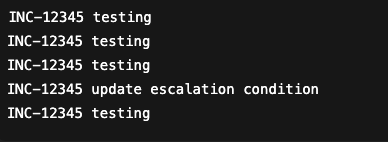
This small habit pays off later when it is time to clean up the branch. During an interactive rebase, you can immediately spot which commits belong to the same unit of work and which ones should stay separate.
If multiple people are committing to the same branch, this also makes it much easier to untangle interleaved commits and avoid accidentally squashing unrelated work together.
Combine commits with interactive rebase
Once the ticket is complete and everything has been tested in Splunk SOAR, the next step is to clean up the commit history so it represents a single, intentional change.
This is where interactive rebase comes in.
Instead of rebasing onto another branch, I prefer to rebase starting from the commit just before I began my work. This gives you precise control and avoids pulling unrelated changes into the rebase.
Find the commit where your work started
Start by looking at the commit history and identifying the last “clean” commit before your ticket work began.
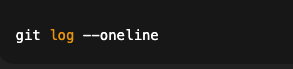
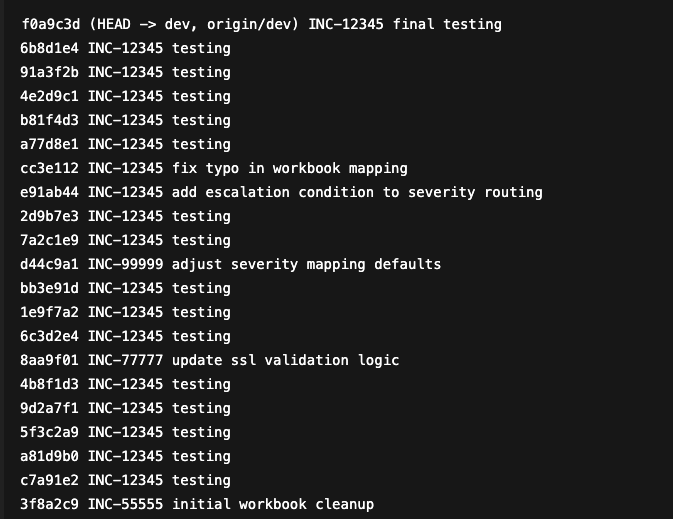
In this example, 8aa9f01 is the commit that existed before any work on the current ticket started.
Start the interactive rebase
Use that commit hash as the starting point for the rebase:

Git will open an editor containing only the commits that occurred after that point.
What you are trying to accomplish
At a high level, the goal is:
- Group all commits related to your ticket together
- Combine them into a single commit, or a very small number of commits
- Leave unrelated work untouched
During development, commits exist to support testing. After development, the history should describe what was actually delivered.
Group your ticket commits first
If you are working in a shared branch like dev, commits from other tickets may be mixed in with yours. Before squashing anything, reorder the list so your ticket commits are adjacent.
This matters because fixup and squash always combine into the commit directly above them. Git does not understand ticket IDs.
Example:
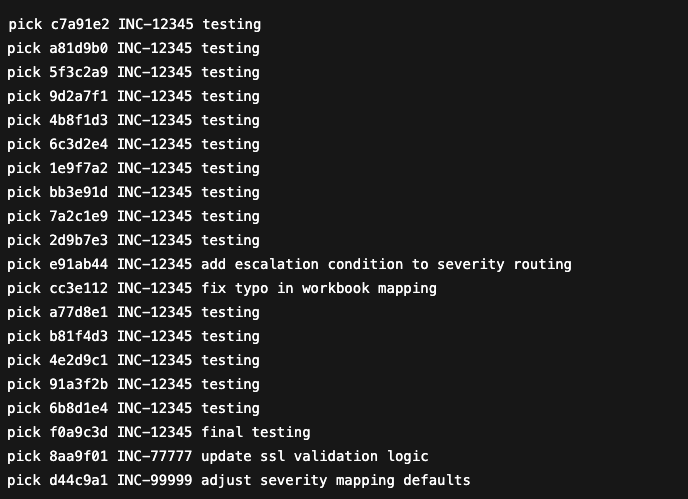
- I started an interactive rebase from the last commit before my ticket work began (
git rebase -i 3f8a2c9). - In the rebase todo list, I reordered the lines so all commits for my ticket (
INC-12345) are grouped together. - I left commits from other tickets (
INC-77777andINC-99999) as their ownpickcommits and moved them below my work so they stay untouched. - I kept my
INC-12345commits in the same relative order they were originally created. This helps avoid surprises and reduces the chance of conflicts. - At this stage I did not squash anything yet. This step is only about grouping commits so the next step (fixup/squash) applies to the correct ticket.
Interactive rebase (squash/fixup step)

· I kept the first commit for INC-12345 as pick and converted the rest of my ticket commits to fixup so they get folded into that first commit.
· I used squash on the last commit so git will prompt me to write a clean, final commit message after everything is combined.
· I left the unrelated ticket commits as pick so they remain separate and do not get mixed into my work.
· After saving and closing the editor, git will replay the commits and may pause if there are conflicts. If that happens, resolve them, git add ., then run git rebase --continue.
Reword the final commit message
After the squash step completes, git will open your editor and prompt you to edit the commit message for the newly combined commit.
By default, this message will be a mashup of all the individual commit messages you just squashed together. That is not what you want to keep.
This is your opportunity to replace all of the testing noise with a single, clear description of what was actually delivered.
What the default message usually looks like
Git will often present something like this:
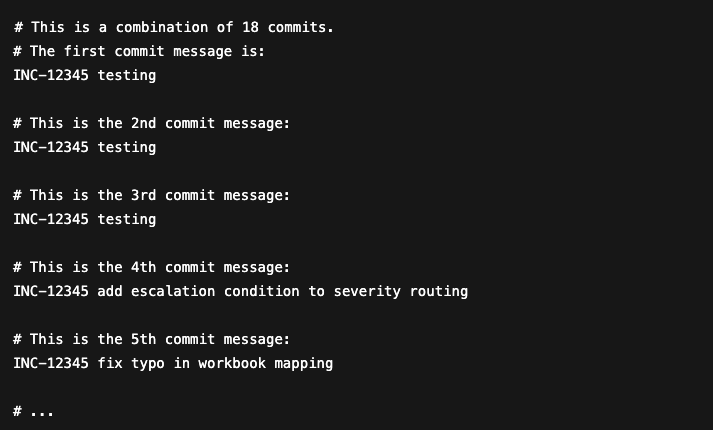
This is just historical context. You should delete most of it.
What the final commit message should look like
Rewrite the commit message so it describes the completed work as a single unit.
A simple and effective structure is:
- Ticket ID and short summary on the first line
- A short list of what changed
- Optional notes about testing or validation
Example:
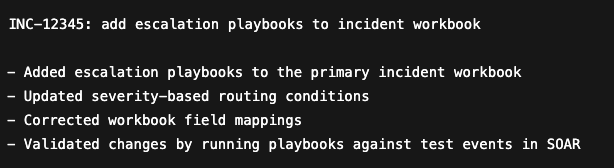
This gives reviewers and future-you everything they need without digging through commit history.
Why this matters
At this point:
- All testing commits are gone
- The history reflects a real unit of work
- Cherry-picking this change later is safe and predictable
- Code reviews focus on the change, not the noise
When you finish and save the commit message, git will complete the rebase.
Next steps after the rebase
At this point you have a clean, single commit that represents your actual work. Now you need to make sure that cleaned up history is safely reflected everywhere it needs to be.
Force push the rewritten history back to your branch
Interactive rebase rewrites commit history, so a normal push will be rejected. Push the updated history back to the same branch using –force-with-lease:

–force-with-lease is the safer option because it will refuse to overwrite the remote branch if it has new commits you do not have locally.
It is a good idea to let your team know when you are doing this procedure so they don’t keep making changes on SOAR.
2) If you are working in dev, pull the updated dev branch back into SOAR
This is the SOAR-specific step people forget.
If you are doing development directly in dev, and you just rewrote dev history with a rebase, you need to make sure Splunk SOAR is pointed at the updated state of that branch. Otherwise, the next time someone saves and pushes changes from SOAR, you can end up reintroducing the old history or losing your cleaned up commit structure.
In other words, after the force push, make sure SOAR pulls the latest version of dev so the platform and git are back in sync.
3) Promote the change to production: merge or cherry-pick
Now that your work is a single clean commit, promotion is straightforward.
If your process uses merge requests
Open your PR/MR into your production branch (or into main, then deploy from there). The review is cleaner because the commit history is no longer full of testing noise.
If your process prefers cherry-pick for small fixes
Cherry-picking becomes safe because the ticket is now one self-contained commit:

Ready to streamline your Splunk SOAR workflow and maintain a clean git history? Explore expert Splunk consulting and automation services now and take your development process to the next level.
About the Author
Nathan Holloway is an accomplished IT professional with over 20 years of experience spanning data center operations, virtualization, automation, and security orchestration.
Beginning his career in data centers, Nathan honed his expertise in hardware and Linux systems administration during the first five years of his journey. Transitioning into virtualization, he spent the next five years working with VMware, where he served as a Tier 2 and Tier 3 engineer. During this time, he mastered Ruby and PowerShell, implemented Puppet to manage configurations for over 5,000 virtual machines, and developed a variety of automation solutions.
In the last six years, Nathan has focused on Splunk SOAR (Security Orchestration, Automation, and Response) at VMware and now TekStream. He has been instrumental in developing new actions and applications for Splunk SOAR and Splunk, driving innovation and efficiency in security and operational workflows.
With a proven track record in automation, scripting, and application development, Nathan brings a unique combination of technical acumen and practical problem-solving to every project.