



















The Formula for Success: Preserving Your Special Excel Formula in Name Manager
By William Phelps, Senior Technical Architect
Microsoft Excel remains a critical tool in day-to-day business. Undoubtedly you have received a spreadsheet from a colleague or prospect where the file is chock-full of complicated formulas, or you have been the sender of such a spreadsheet.
You’ve anguished and labored hours over the exact format and formula syntax, leveraging countless other calculations in the workbook based on the one “super” formula. All of that joy and feeling of accomplishment disappears with an email or call – “hey, I deleted that crazy formula that you had in cell B27 – at least I think it was B27 – and the whole workbook went blank. Can you fix it? I need it in 15 minutes for a meeting.” Arrrgghh…
Today’s tip is how to insulate your workbook to a small extent by discussing a way to hide/abstract your critical calculations via Excel’s Name Manager. You are probably aware of the “named ranges” concept in Excel – the practice of giving an R1C1 reference like “Sheet1!A10” a recognizable name like “SalesTaxRate”. The rationale is to give a static name that can be used in subsequent calculations in case the cell moves from Sheet1, A10 to sheet4, cell B20; any calculation that uses the name “SalesTaxRate” is insulated from the move. Proper naming also makes formulas more readable to the next person looking at the spreadsheet.
That next person may be an Excel whiz, or that next person may simply be an excellent whiz at wrecking things. “I just wanted to see the formula. I didn’t know that my cat would jump on the keyboard while I was looking at it…”. Putting your complex logic into a formula and putting said formula into Name Manager is a nice solution to avoid such scenarios.
For this simplistic example, the assumption is that a named range called “GrossSales” exists somewhere in the workbook, and a named range called “SalesTaxRate” also exists in the workbook. The formula that’s going to be written takes the gross sales, figures out the tax, and then sums the gross amount and the tax for the total.
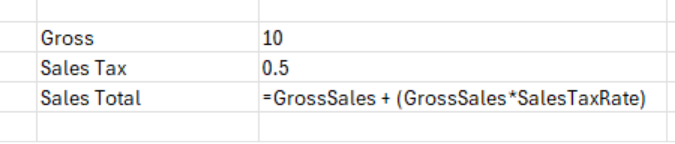

That super complicated formula I don’t want to lose is in line three of the first screenshot.
- In Excel, in the menu bar, select Formulas ->Name Manager

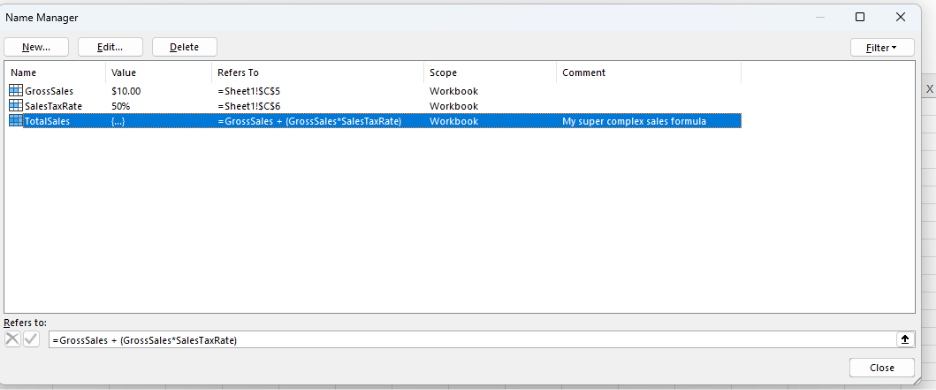
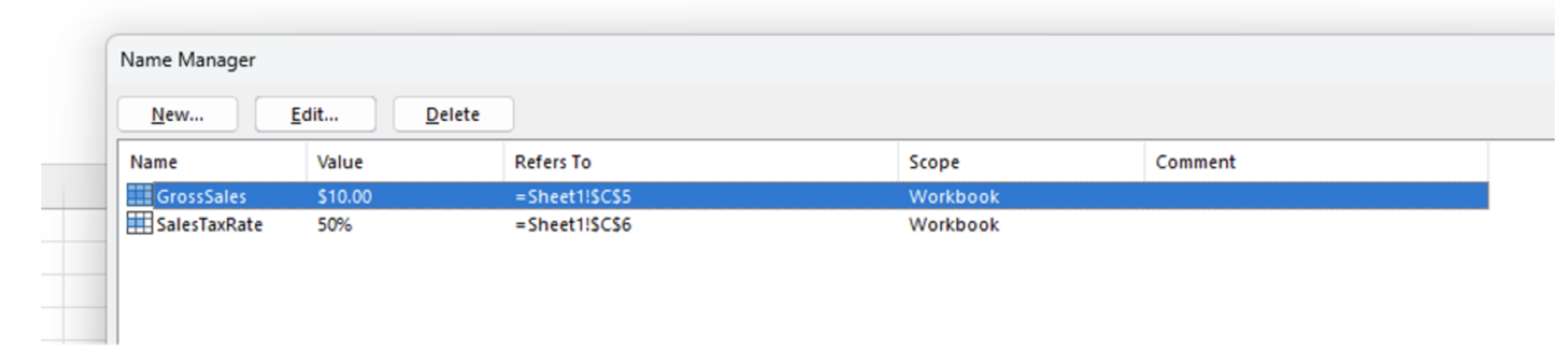
- In Name Manager, you will see the two named ranges that have been defined previously.

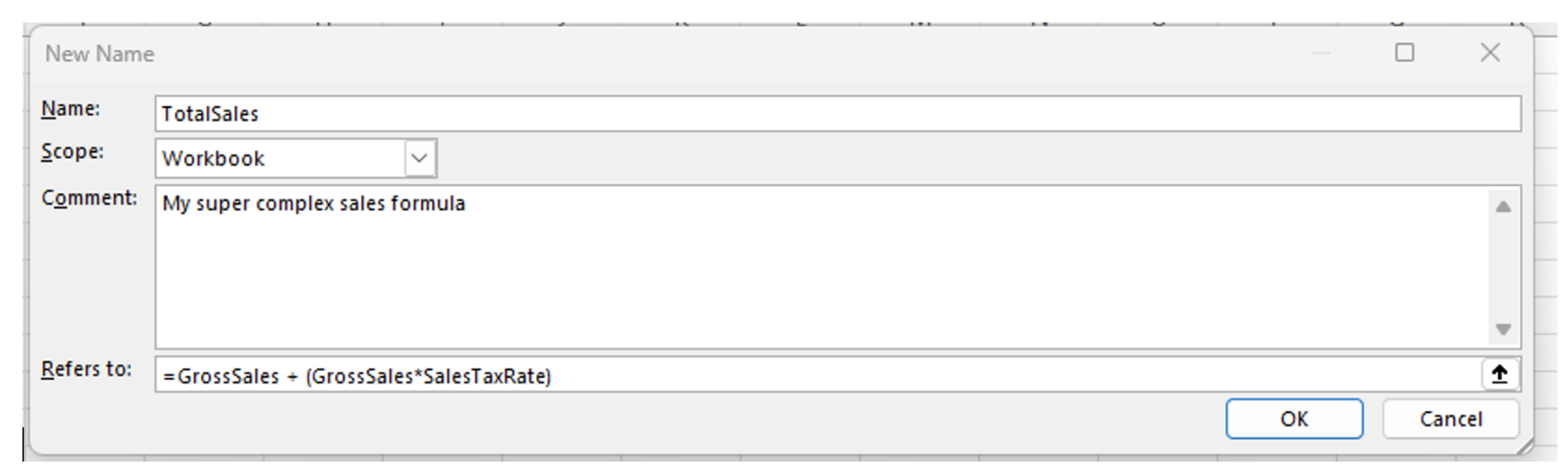
- Click the “New…” button. The following dialogue appears.
There are four options presented:
- Name – this is the name that you will assign to the stored formula
- Scope – for this exercise, leave it as “Workbook”
- Comment – some optional descriptive text that can be used later to understand what the name represents.
- Refers To – finally, that magical place where you can put your formula – in this case “=GrossSales + (GrossSales*SalesTaxRate)”
Click OK. The Name Manager now shows your new name.
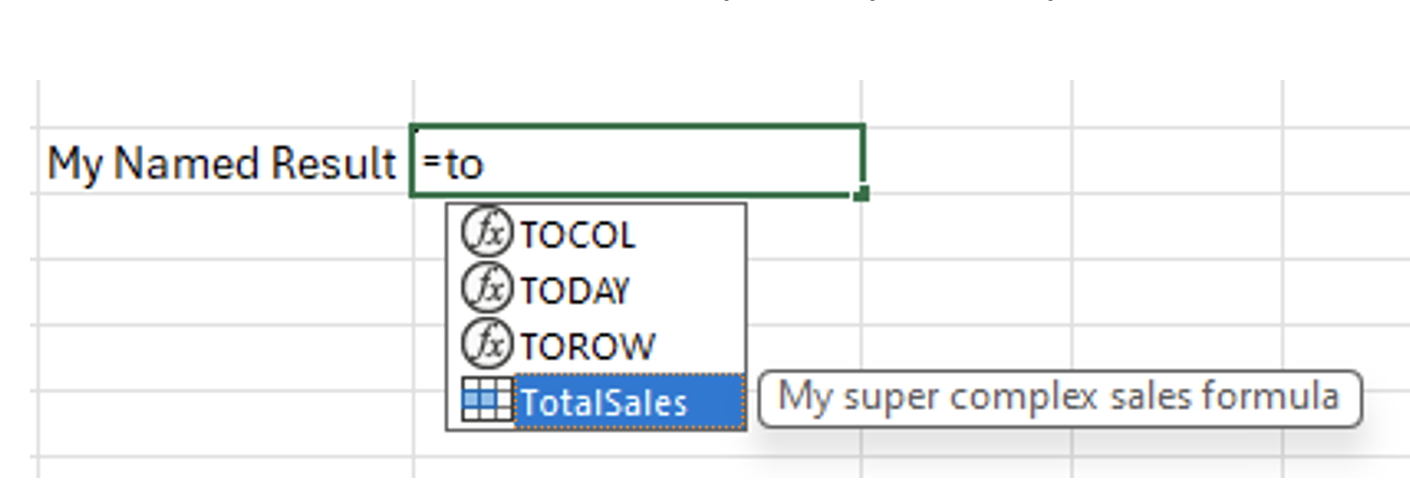
Now for the moment of truth, let’s use the new name.
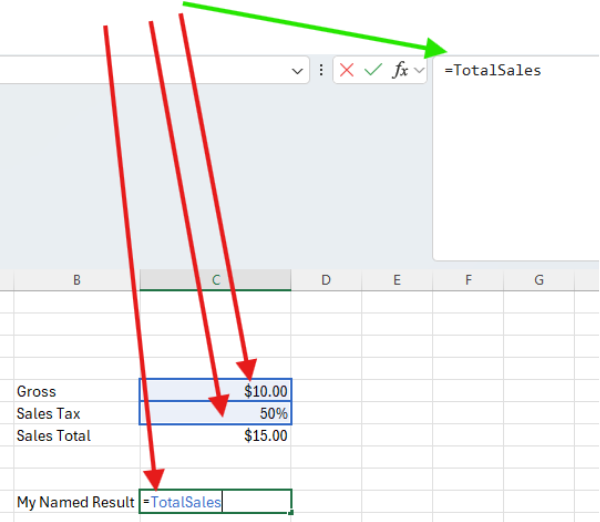
Enter this name as you would enter a function with a leading ”=” and note the behavior. Watch how the references also illuminate in this super simple example.
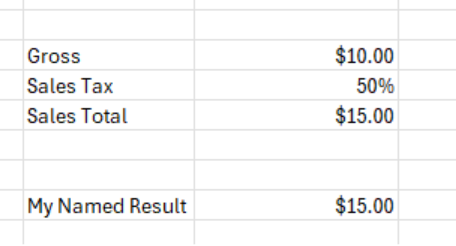
We get the same results as before.
Deleting the original formula in the cell above has no effect on the named formula that was stored in Name Manager.

The formula “=TotalSales” certainly could also be removed in the worksheet cell, but the valuable part – the actual formula – is safely tucked away. It’s easier to rekey “=TotalSales” into a cell for recovery versus rekeying a potentially long formula.
The possibility still exists that a determined user could go into the Name Manager and modify the formula or even delete the name (thus the formula). There is a snippet of Visual Basic code magic that can be performed to “hide” the name from prying eyes.
- Open “Developer” on the Excel toolbar (you may have to add it to the ribbon).
- Select “Visual Basic” at the far left.

- In the “View” menu, click the “Immediate Window” option.

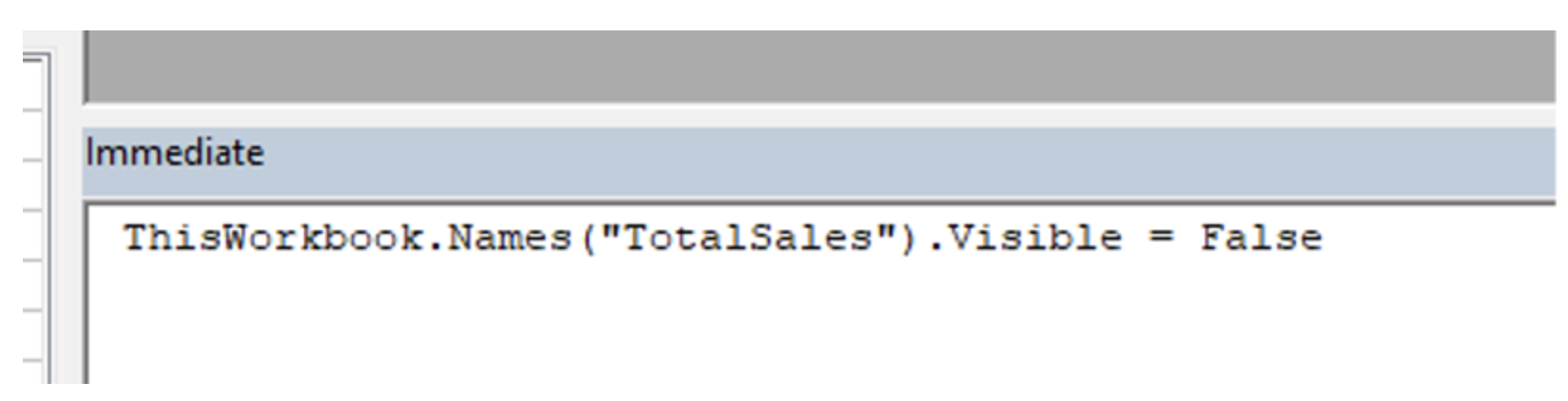
- Somewhere on the screen, a window that looks like the following will appear. It’s typically docked at the bottom of the panel, but it could be floating.

- In the panel, type the following as shown in the screen print, and press Enter.
[ThisWorkbook.Names(“TotalSales”).Visible = False]
- Now, go back to Name Manager and examine the list of names. Your super-secret formula name reference is now gone. The name can still be used as a reference as before in worksheet cell, but you will not get the Intellisense popup or the tip.
- To reenable the name, rerun the VB steps above, and use “true” instead of “false”.
Today’s blog is a simplified how-to that illustrates a solution to an everyday business problem. There is no simple formula for success, but if you do have successful formulas, it’s simple to put them away from prying eyes and fumbling fingers. If you need more “Excel-lent” advice, drop us a line at TekStream – we have the formulas that cover a wide-ranging stack of technologies and staffing solutions.
Need expert advice? Contact TekStream today and let’s find the right solution for your technology needs.
About the Author
William has over twenty-seven years of experience in the design, development, and implementation of web-based enterprise applications. He has worked for clients within the manufacturing, services, energy, and government industries. His areas of expertise include Content Server Web Content Management, Universal Records Management, Imaging, and Inspyrus. He has enjoyed tremendous success communicating complex technical subjects with the diverse population encountered in the typical business organization.
William has experience in WebCenter Content from versions 4.6 to 12c, possessing end-to-end, top-to-bottom implementation experience in gathering requirements, identifying gaps, and implementing the final solution. William has deep experience in customization of product to fit implementation needs. William also has extended experience in WebCenter Content Records from versions 7.5 to 11g, again possessing end-to-end, top-to-bottom implementation experience across a wide swath of industries. He is recognized by Oracle product management as one of the most knowledgeable and experienced resources for records management.
William has experience implementing WebCenter Content Imaging from version 10g to 11g, focusing on implementing accounts payable-centric solutions. He has deep experience with Oracle Document Capture/WebCenter Enterprise Capture and Oracle Forms Recognition. William is also Inspyrus certified on versions through 4.3.11, with implementation exposure with EBS R12, PeopleSoft, Oracle Fusion, and JDE.
William currently holds a Splunk Observability Consultant I certification, assisting clients to help troubleshoot issues and to maximize their observability investment.